skill-recorder
microsoft · microsoft/skill-recorder
Ứng dụng desktop này ghi lại hoạt động màn hình của người dùng để tạo các skill agent hoặc tự động hóa có thể tái sử dụng bằng cách tái cấu trúc ý định và các bước cho Copilot và các nền tảng AI khác của Microsoft.
Ứng dụng máy tính để bàn ghi lại phiên làm việc trên màn hình của bạn và sử dụng GitHub Copilot CLI để tái tạo nó thành một ý định + các bước có thứ tự, sau đó xây dựng một Skill hoặc Automation có thể tái sử dụng cho Microsoft Scout, Microsoft Copilot Cowork, hoặc Copilot Studio.
Xem kết quả thực tế
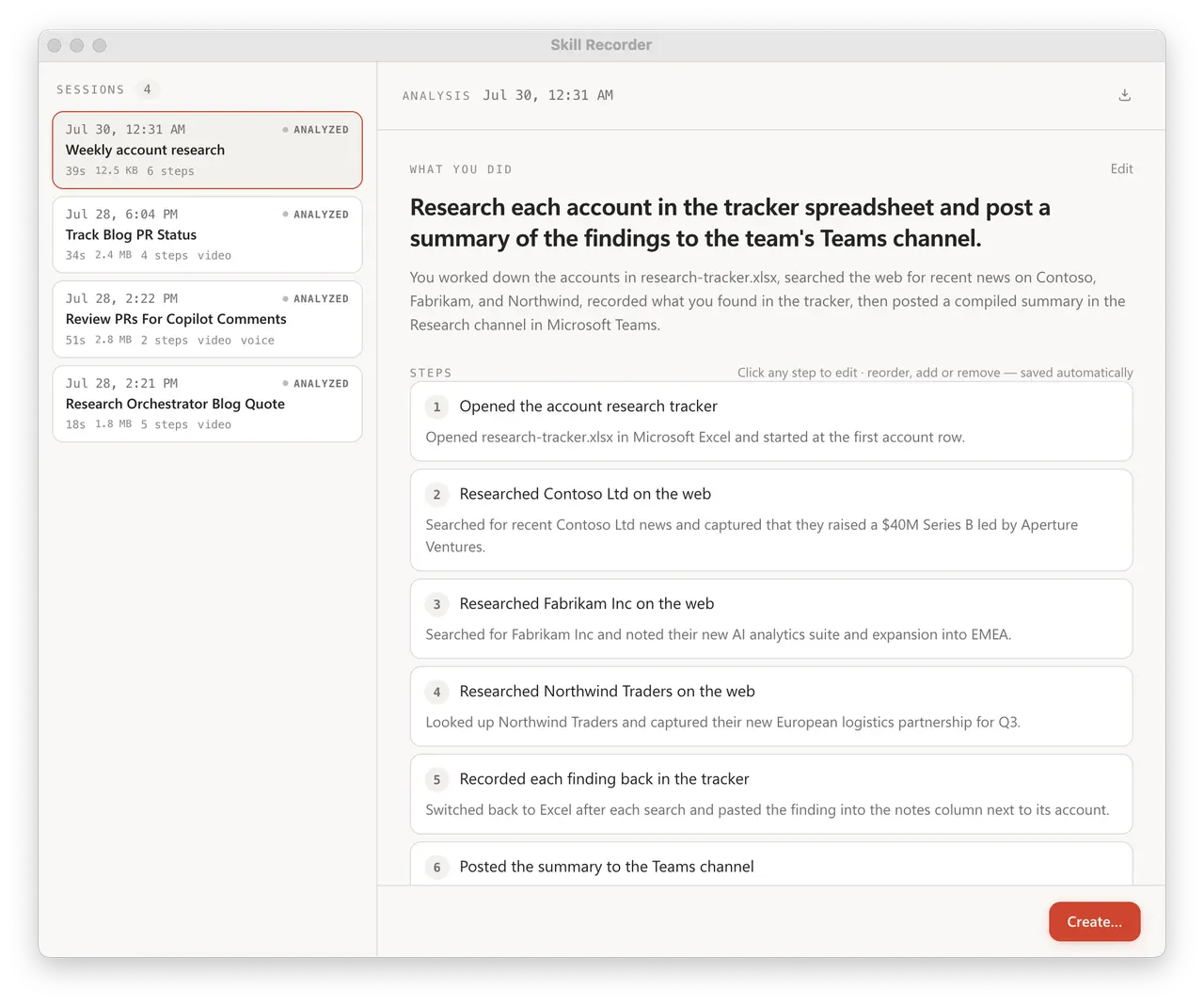
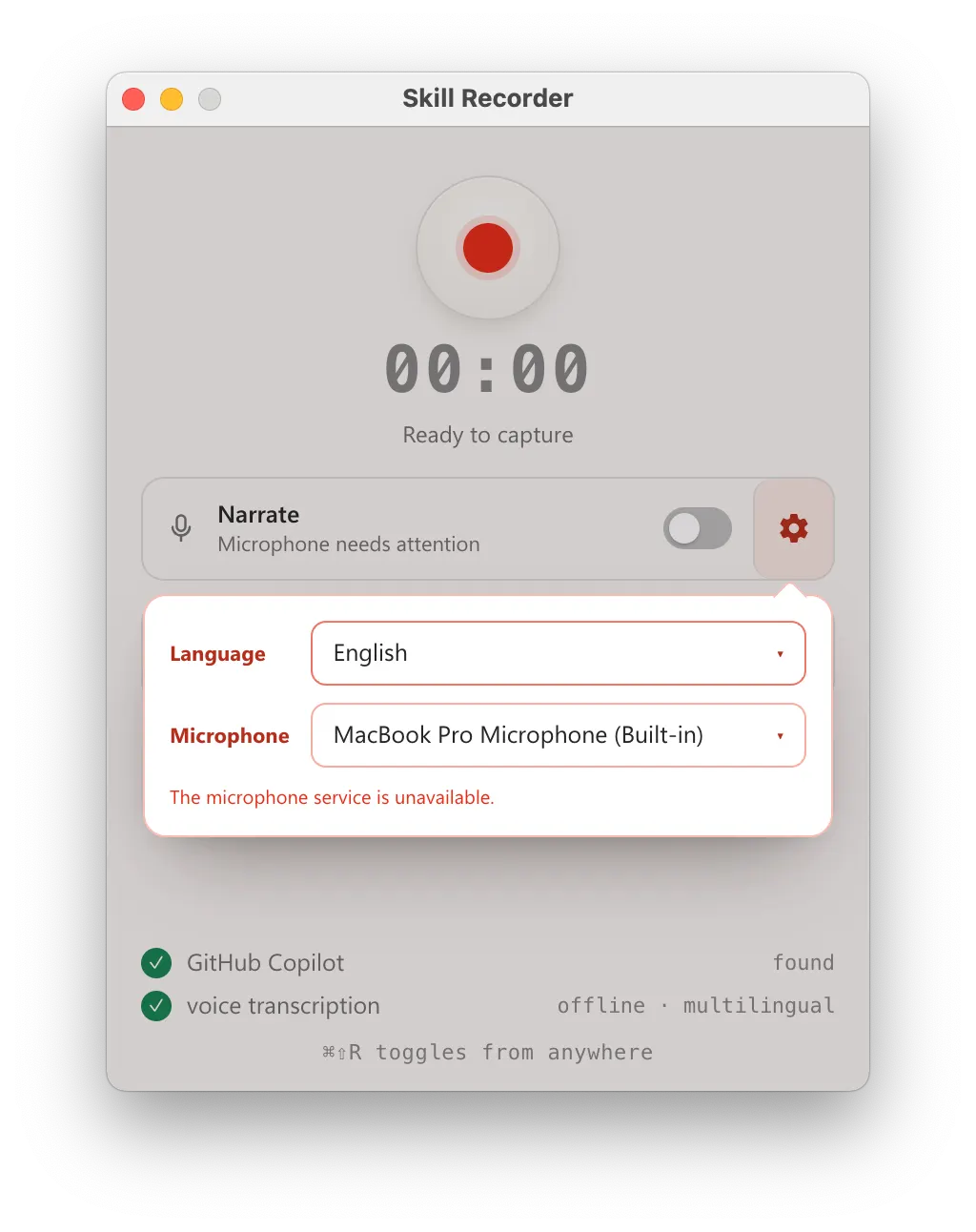
Ảnh từ README của tác giảPhiên làm việc đã phân tích hiển thị ý định và các bước công việc
Ảnh từ README của tác giả microsoft ·Nguồn
Bạn có thể làm gì với nó
- Ghi lại các hành động của bạn để trình bày một quy trình thiết lập phức tạp và để agent tạo ra một skill có thể tái sử dụng.
- Tạo một quy trình làm việc tự động để triển khai một ứng dụng web mới bằng cách ghi lại các bước triển khai thủ công.
- Dạy agent Copilot của bạn một tác vụ mới, như tạo các báo cáo cụ thể, chỉ bằng cách thực hiện nó một lần trên màn hình.
Kiểm tra an toàn
Không thấy dấu hiệu rủi ro trong các file đã quét.
Quét tự động các file trong repo. Luôn xem lại code trước khi chạy.
Trích từ README
Skill Recorder
Record yourself doing a task once, then turn it into a skill your AI agent can repeat.
[!TIP] Want to install Skill Recorder? Go to the latest release. Scroll to Commit-pinned installation and copy the complete command for your operating system. It is ready to paste: you do not need to edit it or download the source code yourself. Step-by-step instructions below.
Skill Recorder captures a real work session on your screen: the clicks, the app and window switches, the pages you visit, commands/output from its optional recorded terminal, and (if you want) your spoken narration. It then uses the GitHub Copilot CLI to reconstruct what you actually did as a clear intent plus an ordered list of steps. From there, one step turns that single run into something an agent can reuse:
- a Skill: a
SKILL.mdprocedure an agent runs on demand, or - an Automation: the same procedure on a schedule or trigger.
Both prefer the agent's native tools (like the gh CLI or web_fetch) over replaying
UI clicks, and generalize from your one example, so recording yourself submitting one
form can teach the agent to submit all of them.
How it works
- 🔴 Record. Hit record (or
⌘⇧R/Ctrl+Shift+Rfrom anywhere) and just do your task. Skill Recorder captures your screen and activity locally, in the background. - 🎛️ Control. While recording, a small always-on-top bar shows capture, microphone, and recorded-terminal state. Open the session-scoped terminal, mute, unmute, or switch mics, then finish or discard with confirmation.
- 🧠 Analyze. Click Analyze and GitHub Copilot reconstructs one overall intent and an ordered list of steps. Review and edit until it reads right.
- ✨ Create. From an approved analysis, generate a reusable Skill and/or a scheduled Automation.
For skills, Review SKILL.md optionally shows the complete, read-only file text (including frontmatter) before installation or export. Preparing a preview writes no skill files. Close and reopen it without regenerating; Add/Export from either surface uses that exact preview. Editing the plan discards the preview. You can still choose Add/Export directly without reviewing or adding a confirmation step. Review provides visibility into the generated instructions, not a security guarantee.
Get started
Skill Recorder is published as a source release: one command downloads a pinned Node.js runtime, builds the exact release commit on your machine, and adds a Skill Recorder (Source) app you can relaunch anytime. Nothing is installed globally. You'll need a GitHub account with Copilot access; the Copilot CLI ships with the app.
macOS is the primary target. Windows 11 (x64 and ARM64) is supported too (see
WINDOWS-VALIDATION.md).
Install it
Open the latest release and follow these steps:
- On the release page, scroll to Commit-pinned installation. Find Windows 11 x64 or ARM64 or macOS or Ubuntu, then copy the entire command in that section using the copy button at the top-right of the code block.
- Open PowerShell from the Windows Start menu, or Terminal on macOS or Ubuntu. Paste the command and press Enter.
- Keep that window open while installation completes. The installer downloads what it needs, builds the app on your computer, creates shortcuts, and launches Skill Recorder. The first installation can take several minutes.
[!IMPORTANT] Copy the command from the release page, not a template from the technical docs. The release command already contains the correct version identifier; there is nothing to replace. Do not paste commands containing
<40-character-release-commit>literally. You do not need Git, a separate Node.js installation, or the Manual developer setup instructions. The Source code (zip) and Source code (tar.gz) links under Assets are not app installers.
To review the script before running it, follow the release page's inspect-first instructions instead. Installation remains subject to your organization's policies.
Open it again later: use Skill Recorder (Source) on your Windows desktop or
Start Menu; on macOS, find it in ~/Applications, Spotlight, or Launchpad; on
Ubuntu, use the matching application entry. You do not need to reinstall each time.
Advanced options, including running in the background on macOS or Ubuntu, are in
INSTALL.md.
Then record
- Grant Screen Recording. On first launch, macOS asks for Screen Recording permission; grant it and you're ready to record.
- Record, Analyze, Create. Do your task, then Analyze. The first time you Analyze, Skill Recorder offers Sign in to Copilot if you aren't signed in yet. Finish authorization in your browser; the app verifies sign-in and automatically retries the interrupted analysis once. There is no login terminal window to close. Canceling sign-in or leaving that analysis prevents the automatic retry.
On Windows, a local Microsoft Entra tenant hint can offer a choice between
Microsoft Enterprise SSO and a Personal GitHub account. This is only a
routing hint, not proof of employment. Microsoft sign-in has two separate steps:
finish SSO in the browser, then authorize the GitHub Copilot app. When SSO lands on
github.com/enterprises/microsoft, close that tab, return to Skill Recorder, and
choose Authorize Copilot. SSO alone does not authorize the app. Use the same
browser profile and Microsoft-linked GitHub account for both steps.
Without a hint, and on macOS/Linux,
sign-in goes directly to the standard GitHub flow. No work-email prompt is required.
The author