mcp-playwright
executeautomation · executeautomation/mcp-playwright
A Playwright-based MCP server that lets agents automate browsers, take screenshots, and scrape web data.
Playwright Model Context Protocol Server - Tool to automate Browsers and APIs in Claude Desktop, Cline, Cursor IDE and More 🔌
See it in action
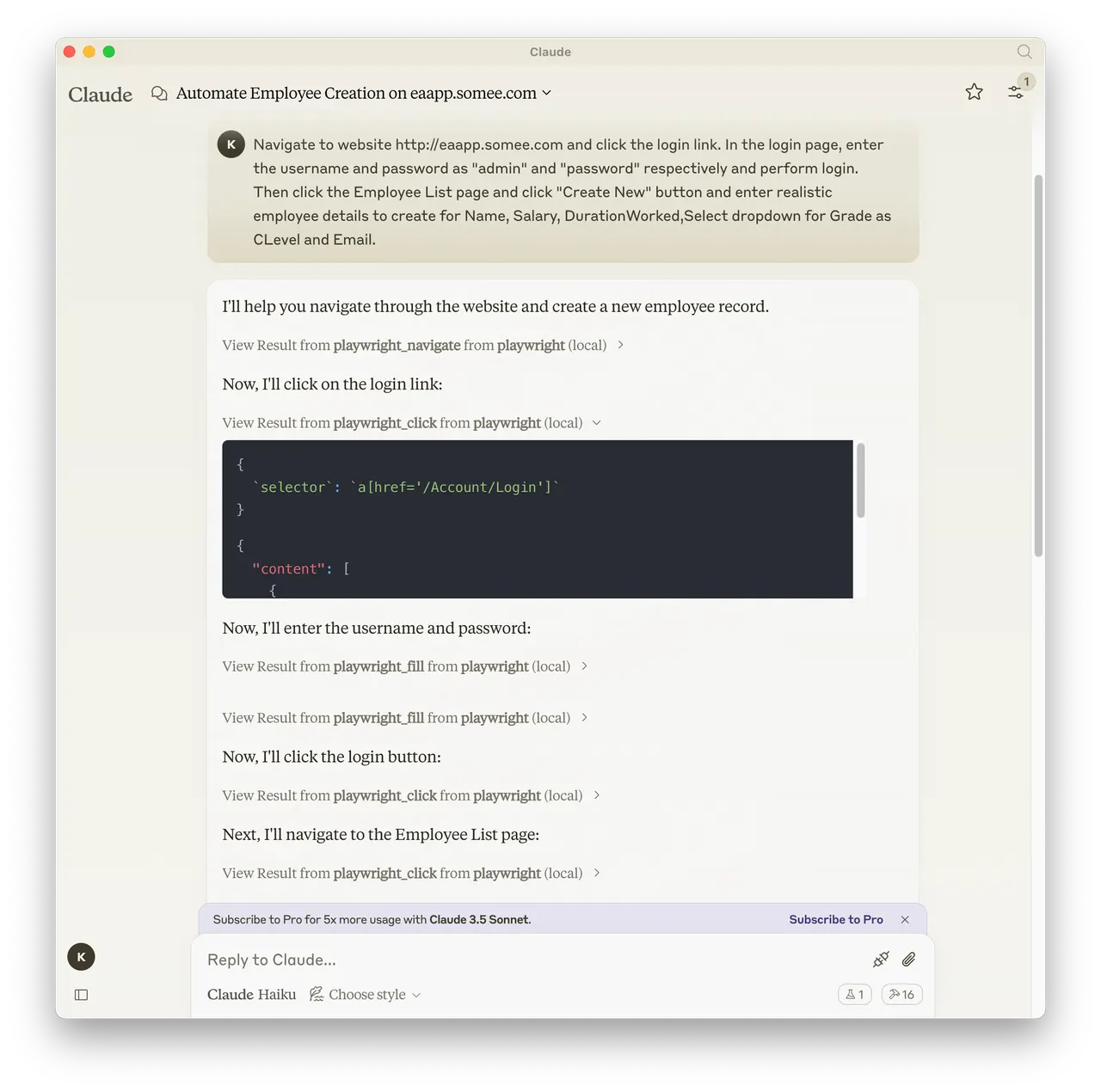
From the author's READMEClaude using Playwright MCP to automate web navigation and form filling
From the author's README executeautomation ·Source
What you can do with it
- Automate web scraping tasks by asking the agent to browse and extract data
- Test web application responsive designs using real device emulation presets
- Capture screenshots of specific web elements for UI debugging or documentation
Safety check
No risky patterns found in the files we scanned.
Automated scan of the repo files. Always review code you run.
From the README
MseeP.ai Security Assessment
Playwright MCP Server 🎭
A Model Context Protocol server that provides browser automation capabilities using Playwright. This server enables LLMs to interact with web pages, take screenshots, generate test code, web scrapes the page and execute JavaScript in a real browser environment.
✨ What's New in v1.0.10
🎯 Device Emulation with 143 Real Device Presets!
Test your web applications on real device profiles with a simple command:
// Test on iPhone 13 with automatic user-agent, touch support, and device pixel ratio
await playwright_resize({ device: "iPhone 13" });

// Switch to iPad with landscape orientation
await playwright_resize({ device: "iPad Pro 11", orientation: "landscape" });

// Test desktop view
await playwright_resize({ device: "Desktop Chrome" });
Natural Language Support for AI Assistants:
- "Test on iPhone 13"
- "Switch to iPad view"
- "Rotate to landscape"
Supports 143 devices: iPhone, iPad, Pixel, Galaxy, and Desktop browsers with proper emulation of viewport, user-agent, touch events, and device pixel ratios.
📚 View Device Quick Reference | Prompt Guide
Screenshot
Documentation | API reference
Installation
You can install the package using either npm, mcp-get, or Smithery:
Using npm:
npm install -g @executeautomation/playwright-mcp-server
Using mcp-get:
npx @michaellatman/mcp-get@latest install @executeautomation/playwright-mcp-server
Using Smithery
To install Playwright MCP for Claude Desktop automatically via Smithery:
npx @smithery/cli install @executeautomation/playwright-mcp-server --client claude
Using Claude Code:
claude mcp add --transport stdio playwright npx @executeautomation/playwright-mcp-server
Installation in VS Code
Install the Playwright MCP server in VS Code using one of these buttons:
Alternatively, you can install the Playwright MCP server using the VS Code CLI:
# For VS Code
code --add-mcp '{"name":"playwright","command":"npx","args":["@executeautomation/playwright-mcp-server"]}'
# For VS Code Insiders
code-insiders --add-mcp '{"name":"playwright","command":"npx","args":["@executeautomation/playwright-mcp-server"]}'
After installation, the ExecuteAutomation Playwright MCP server will be available for use with your GitHub Copilot agent in VS Code.
Browser Installation
Automatic Installation (Recommended)
The Playwright MCP Server automatically installs browser binaries when you first use it. When the server detects that a browser is missing, it will:
- Automatically download and install the required browser (Chromium, Firefox, or WebKit)
- Display installation progress in the console
- Retry your request once installation completes
No manual setup required! Just start using the server, and it handles browser installation for you.
Manual Installation (Optional)
If you prefer to install browsers manually or encounter any issues with automatic installation:
# Install all browsers
npx playwright install

# Or install specific browsers
npx playwright install chromium
npx playwright install firefox
npx playwright install webkit
Browser Storage Location
Browsers are installed to:
- Windows:
%USERPROFILE%\AppData\Local\ms-playwright - macOS:
~/Library/Caches/ms-playwright - Linux:
~/.cache/ms-playwright
Configuration to use Playwright Server
Standard Mode (stdio)
This is the recommended mode for Claude Desktop.
{
  "mcpServers": {
    "playwright": {
      "command": "npx",
      "args": ["-y", "@executeautomation/playwright-mcp-server"]
    }
  }
}
Note: In stdio mode, logging is automatically directed to files only (not console) to maintain clean JSON-RPC communication. Logs are written to ~/playwright-mcp-server.log.
HTTP Mode (Standalone Server)
When running headed browser on systems without display or from worker processes of IDEs, you can run the MCP server as a standalone HTTP server:
Note for Claude Desktop Users: Claude Desktop currently requires stdio mode (command/args configuration). HTTP mode is recommended for VS Code, custom clients, and remote deployments. See CLAUDE_DESKTOP_CONFIG.md for details.
Starting the HTTP Server
# Using npx
npx @executeautomation/playwright-mcp-server --port 8931

# Or after global installation
playwright-mcp-server --port 8931
The server will start and display available endpoints:
==============================================
Playwright MCP Server (HTTP Mode)
==============================================
Port: 8931

ENDPOINTS:
- SSE Stream:     GET  http://localhost:8931/sse
- Messages:       POST http://localhost:8931/messages?sessionId=<id>
- MCP (unified):  GET  http://localhost:8931/mcp
- MCP (unified):  POST http://localhost:8931/mcp?sessionId=<id>
- Health Check:   GET  http://localhost:8931/health
================